

在 React Native 中集成 Firebase 存储和图像选择器
介绍
Firebase 存储服务用于存储链接的 Firebase 项目下所有 Firebase 应用(Android、iOS 和 Web)的媒体内容。Firebase 存储服务基于Google Cloud Storage构建,允许 Web 应用直接访问存储内容。数据存储在 Google Cloud Storage 存储桶中,这些存储桶只是管理数据和访问控制的命名空间。可以使用单独的 NPM 依赖项添加存储服务。可以使用react-native-image-picker NPM模块从设备或相机中获取图像。
本指南介绍了 Firebase 存储和图片选择器模块的实现,以便从设备获取图片并将其存储到 Firebase 存储桶中。请按照以下其他指南完成实现:
- 为 React Native 设置 Firebase 项目
- 在 React Native 中集成 Firebase 存储和图像选择器(当前指南)
- 在 React Native 中将图像上传到 Firebase 存储
优化的代码库可在RNFirebaseStorage存储库中找到。
设置 Firebase 存储依赖项
每个 Firebase 服务都需要特定的 NPM 模块来与 Firebase 服务器应用进行通信。可以使用react-native-firebase/storage NPM 模块集成 Firebase 存储 API:
      # Install the storage module
npm install @react-native-firebase/storage

# setup iOS project
cd ios && pod install --repo-update && cd ..
这些命令将安装 Firebase 存储模块。安装Firebase 存储的iOS pod依赖项。
使用大多数 Firebase NPM 模块需要@react-native-firebase/app NPM 模块。
在控制台中设置 Firebase 存储
默认情况下,Firebase 会创建一个存储桶来存储媒体内容,并使用 Firebase 项目 ID 将存储桶命名为gs://firebase-project-id.appspot.com。
在 Firebase 项目中创建默认存储桶:
- 从左侧面板中选择“存储”选项,然后单击“开始”。
- 使用下一个选项继续入职流程,并选择靠近您所在位置的任何存储位置。
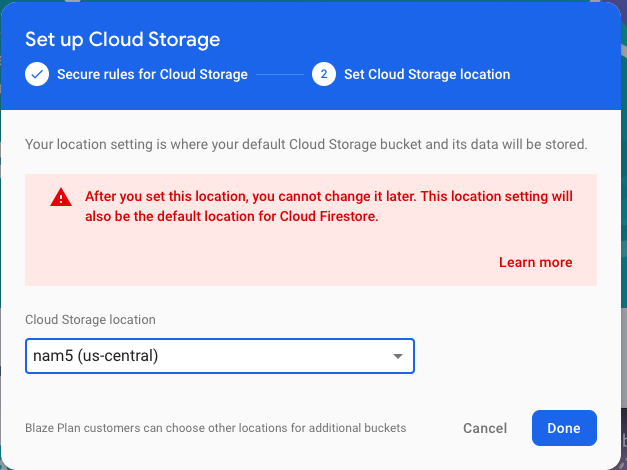
Firebase 使用允许读取、写入:if request.auth != null;规则保护存储内容免遭未经授权的访问。
- 选择您当前位置附近的任何云存储位置,然后单击完成。
- 转到规则选项卡并更改公共访问的规则:
      rules_version = '2';
service firebase.storage {
  match /b/{bucket}/o {
    match /{allPaths=**} {
      allow read, write;
    }
  }
这将使每个用户都可以公开访问 Firebase 存储桶,而无需集成 Firebase 身份验证服务。
不要在生产中使用允许读取、写入的公共访问规则;这可能会导致数据保护问题。
设置图像选择器
Android 或 iOS 设备上的图像通过不同的内置应用程序(图库或照片)进行管理,并且可以通过特定路径(iOS 的 URI)值访问这些图像。react -native-image-picker模块提供 React Native 特定的 API 来获取底层本机设备上图像的路径/URI。按照以下步骤安装和配置图像选择器:
安装图像选择器
执行以下命令安装图像选择器模块和 iOS pod依赖项
      npm install react-native-image-picker
cd ios && pod install && cd ..
添加权限
Android 和 iOS 都遵循权限模型来告知用户应用程序所使用的资源,因此应该在本机项目的配置文件中添加这些权限。
- 添加 Android 权限:在RNFirebaseStorage/android/app/src/main/AndroidManifest.xml文件中添加所需的权限以获取 Android 设备上的相机和存储访问权限:
      <uses-permission android:name="android.permission.CAMERA" />
<uses-permission android:name="android.permission.WRITE_EXTERNAL_STORAGE"/>
- 添加 iOS 权限:应在RNFirebaseStorage/ios/RNFirebaseStorage/info.plist文件中添加以下权限(键字符串对),以访问照片、相机和照片存储。使用任何文本编辑器打开info.plist文件,然后从以下代码片段中复制并粘贴所有三个键字符串对。在 Xcode 中,右键单击 info.plist文件,选择“打开方式”选项,然后选择“源代码”选项:
      <plist version="1.0">
  <dict>
    <key>NSPhotoLibraryUsageDescription</key>
    <string>$(PRODUCT_NAME) would like access to your photo gallery</string>
    <key>NSCameraUsageDescription</key>
    <string>$(PRODUCT_NAME) would like to use your camera</string>
    <key>NSPhotoLibraryAddUsageDescription</key>
    <string>$(PRODUCT_NAME) would like to save photos to your photo gallery</string>
    </dict>
</plist>

(可选)清理 Android 和 iOS 项目:
      #android
cd android && ./gradlew clean && cd ..
#iOS
cd ios && xcodebuild clean && cd ..
实现图像选择器
图像选择器可以从照片库或相机中获取图像。图像选择器对话框的 UI 也可以使用 Options 对象进行自定义,该对象可以作为第一个参数传递给showImagePicker函数调用。showImagePicker 的第二个参数是一个回调函数,它将使用包含所选图像详细信息的响应对象进行调用:
      chooseFile = () => {
    this.setState({ status: '' });
    var options = {
        title: 'Select Image',
        storageOptions: {
            skipBackup: true, // do not backup to iCloud
            path: 'images', // store camera images under Pictures/images for android and Documents/images for iOS
        },
    };
    ImagePicker.showImagePicker(options, response => {
        if (response.didCancel) {
            console.log('User cancelled image picker', storage());
        } else if (response.error) {
            console.log('ImagePicker Error: ', response.error);
        } else if (response.customButton) {
            console.log('User tapped custom button: ', response.customButton);
        } else {
            let path = this.getPlatformPath(response).value;
        }
    });
};

/**
 * Get platform specific value from response
 */
getPlatformPath({ path, uri }) {
    return Platform.select({
        android: { "value": path },
        ios: { "value": uri }
    })
}
storageOptions对象定义了iOS 的Document/Images和Android 的Pictures/images下存储点击图像的路径。skipBackup : true属性将指示 iOS 跳过相机图像的 iCloud 图像备份。
以下是触发chooseFile函数以获取并在屏幕上显示所选图像的完整代码:
      // App.js
/**
 * @author Pavneet Singh
 */

import React from "react";
import {
    StyleSheet,
    View,
    Button,
    Image,
    ActivityIndicator,
    Platform,
    SafeAreaView,
    Text,
} from "react-native";
import storage from '@react-native-firebase/storage';
import ImagePicker from 'react-native-image-picker';
export default class App extends React.Component {

    state = {
        // placeholder image
        imagePath: require("./img/default.jpg")
    }

    chooseFile = () => {
        var options = {
            title: 'Select Image',
            storageOptions: {
                skipBackup: true, // do not backup to iCloud
                path: 'images', // store camera images under Pictures/images for android and Documents/images for iOS
            },
        };
        ImagePicker.showImagePicker(options, response => {
            if (response.didCancel) {
                console.log('User cancelled image picker', storage());
            } else if (response.error) {
                console.log('ImagePicker Error: ', response.error);
            } else if (response.customButton) {
                console.log('User tapped custom button: ', response.customButton);
            } else {
                let path = this.getPlatformPath(response).value;
                let fileName = this.getFileName(response.fileName, path);
                this.setState({ imagePath: path });
            }
        });
    };

    /**
     * Get the file name and handle the invalid null case
     */
    getFileName(name, path) {
        if (name != null) { return name; }

        if (Platform.OS === "ios") {
            path = "~" + path.substring(path.indexOf("/Documents"));
        }
        return path.split("/").pop();
    }

    /**
     * Get platform specific value from response
     */
    getPlatformPath({ path, uri }) {
        return Platform.select({
            android: { "value": path },
            ios: { "value": uri }
        })
    }

    /**
     * Get platform-specific Uri with the required format
     */
    getPlatformURI(imagePath) {
        let imgSource = imagePath;
        if (isNaN(imagePath)) {
            imgSource = { uri: this.state.imagePath };
            if (Platform.OS == 'android') {
                imgSource.uri = "file:///" + imgSource.uri;
            }
        }
        return imgSource
    }

    render() {
        let { imagePath } = this.<span class="
免责声明:本内容来源于第三方作者授权、网友推荐或互联网整理,旨在为广大用户提供学习与参考之用。所有文本和图片版权归原创网站或作者本人所有,其观点并不代表本站立场。如有任何版权侵犯或转载不当之情况,请与我们取得联系,我们将尽快进行相关处理与修改。感谢您的理解与支持!
扫一扫,分享到微信
